Don’t like Apple Music’s new white icon? Me neither — let's change it

Installing a small ‘point’ update, like iOS 27.2, is a pretty routine operation these days. Just accept the update when your iPhone tells you it’s here, your iPhone restarts after it's been downloaded, and you’re good to go.
The latest iOS27.2 restarted as normal for me, but I wasn't expecting it to have changed my Apple Music icon. When I tried to listen to some music I initially thought my Apple Music app had vanished. Instead, what has happened is that Apple has, rather frustratingly, decided to change the icon to a white one instead of the familiar red one that I’m used to seeing.
It took me a few seconds, but I finally found it on my Home Screen. And to be honest, I’m not a fan of the new white icon. The red one was iconic (pun intended), and still represents Apple Music, to me. Frankly, this new white icon is terrible. It may sit better with the other official Apple apps on my iPhone, like Calendar and Clock, which are also white, but I hate it.
That’s when I decided to change it back.
How to change Apple Music back to a red icon
Step 1
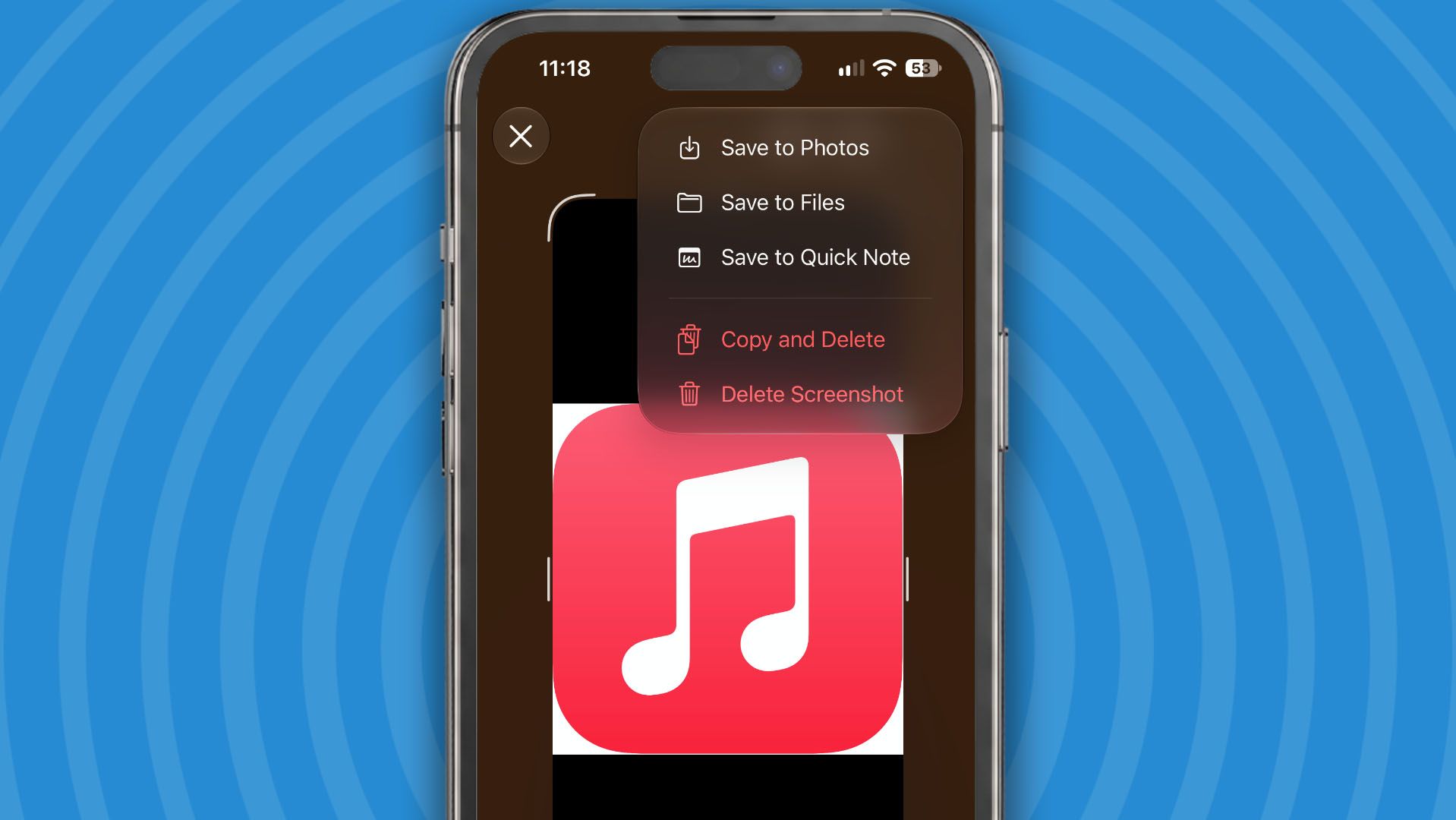
Apple's Shortcuts app is the key to this, but the first thing you’ll need is an image of the old red icon to save to your Photos app on your phone.
You can search for it online, or do what I did and ask ChatGPT to show it to you. All you need to do is screenshot it if you can make it big enough, then tap the tick icon followed by Save to Photos.
It doesn’t have to be a transparent image, because iOS 27 will make it transparent for you, so it can have white around the edges.
Step 2
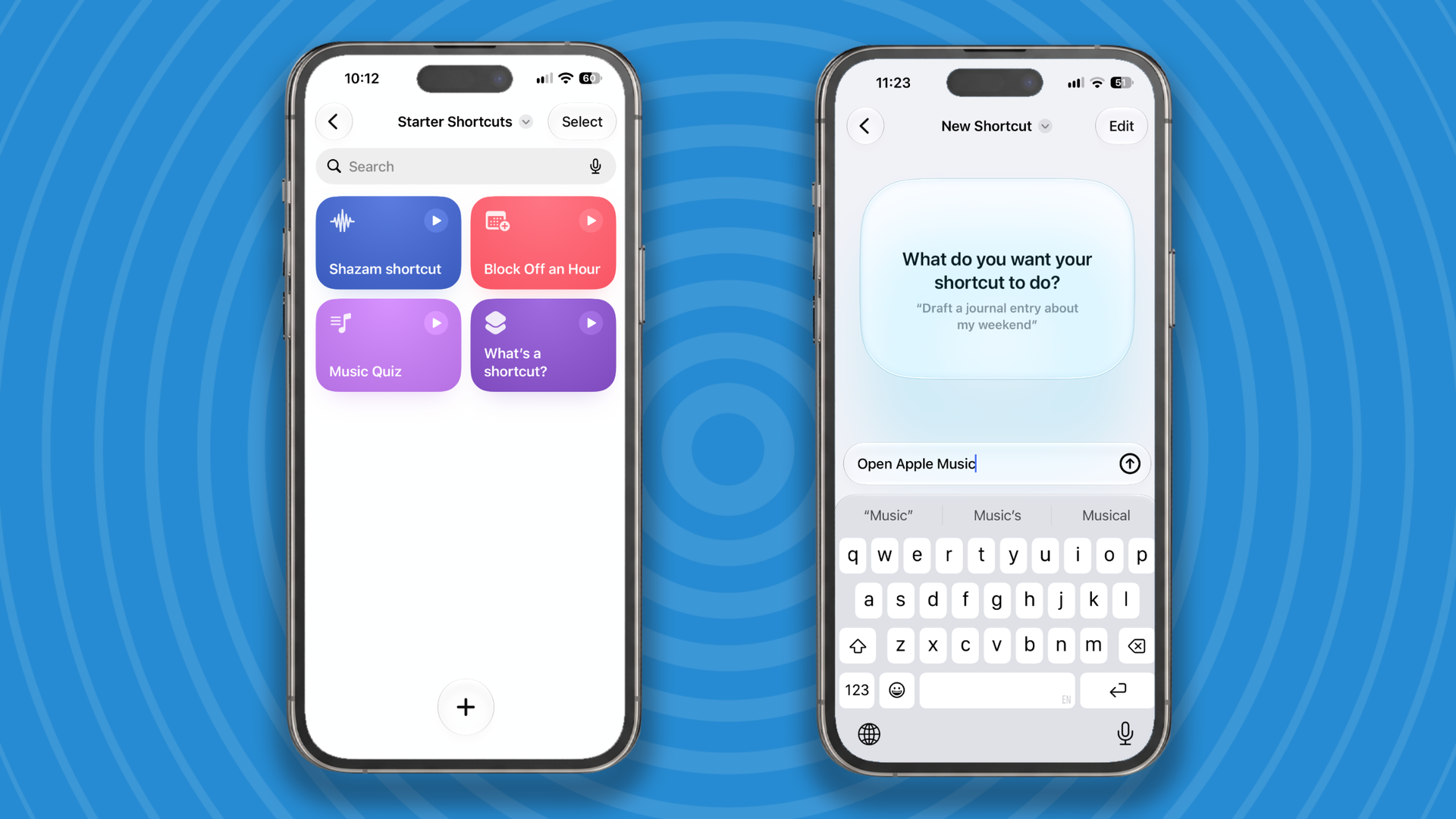
Next you need to load up the Shortcuts app and tap the + button at the bottom of the screen to create a new shortcut. Type “Open Apple Music”, when it asks you what you want the app to do.
Step 3
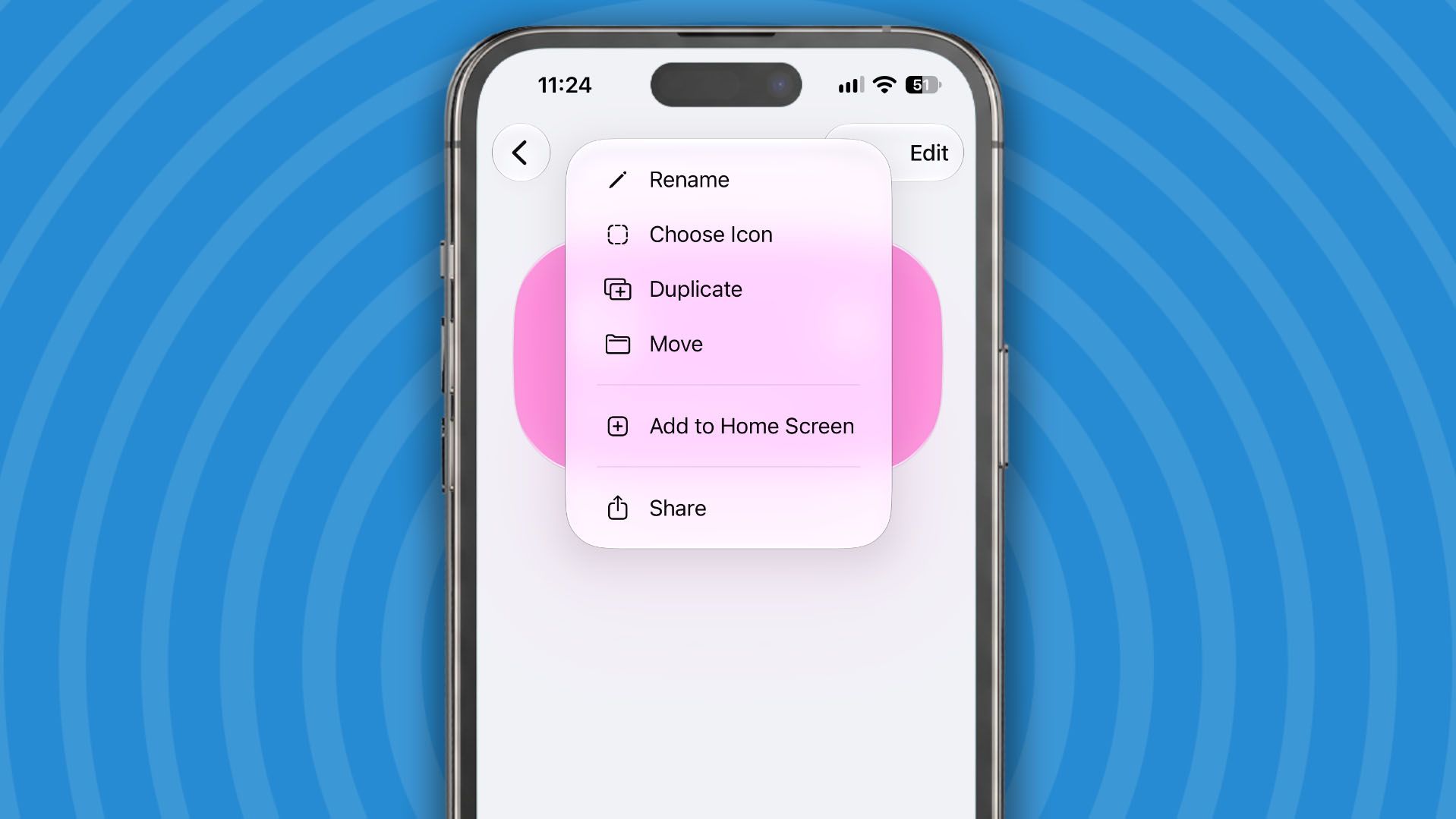
After a couple of seconds, iOS27 will create the shortcut. Now you need to add it to your Home Screen. Tap on the Open Apple Music name at the top of the screen and from the menu that appears choose Add to Home Screen.
Step 4
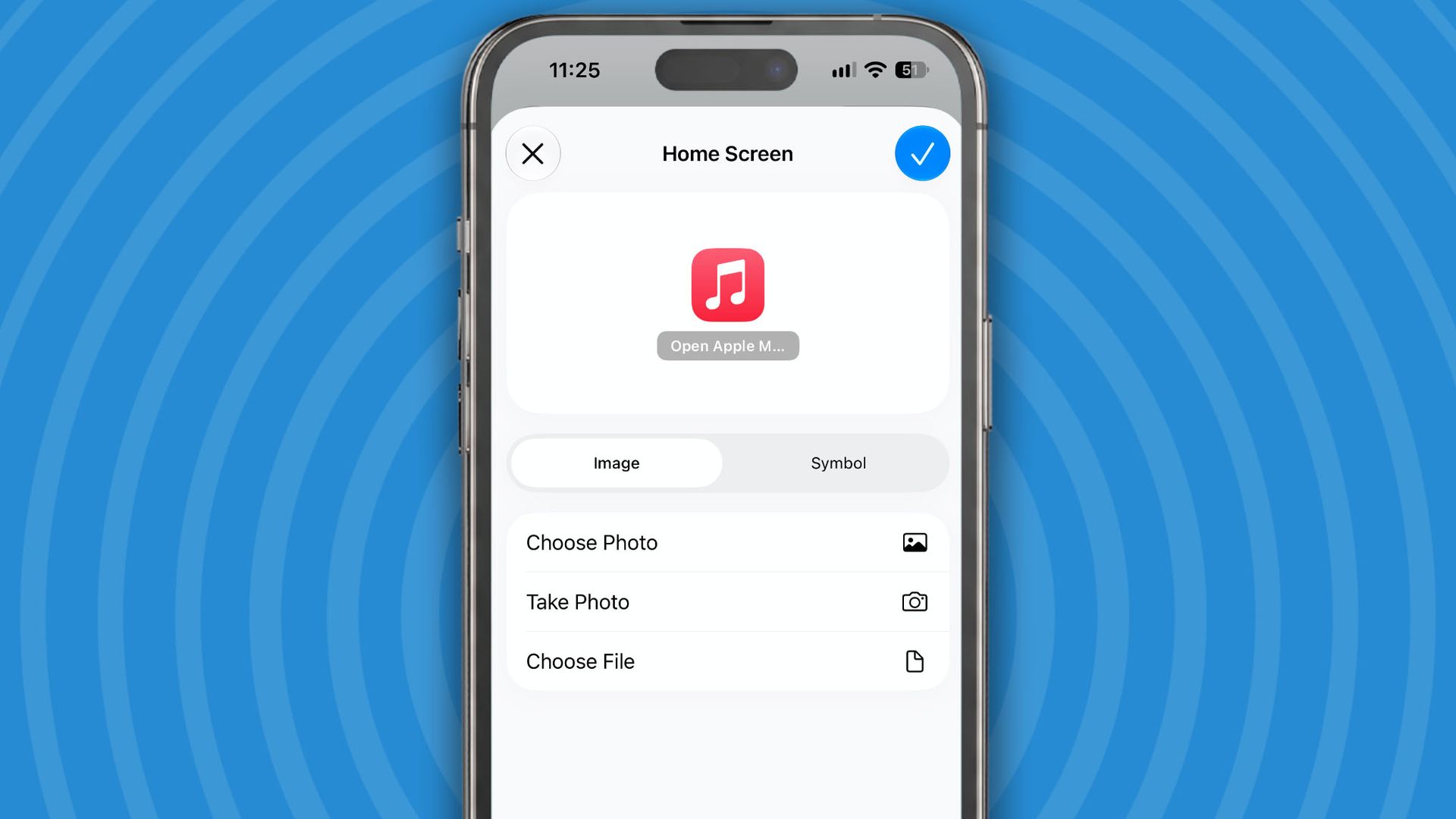
You now get the chance to add your screenshot as the icon for the new Shortcut you've created. Tap on Image then Choose Photo, and select the red Apple Music icon image, then Choose. Now tap on the blue tick icon and you’re done.
Step 5
Now you have the old Apple Music icon back on your Home Screen. Just press and hold on any icon and select Edit Home Screen from the menu that appears to move the new icon where you’d like it to go. For me that’s on the first page.
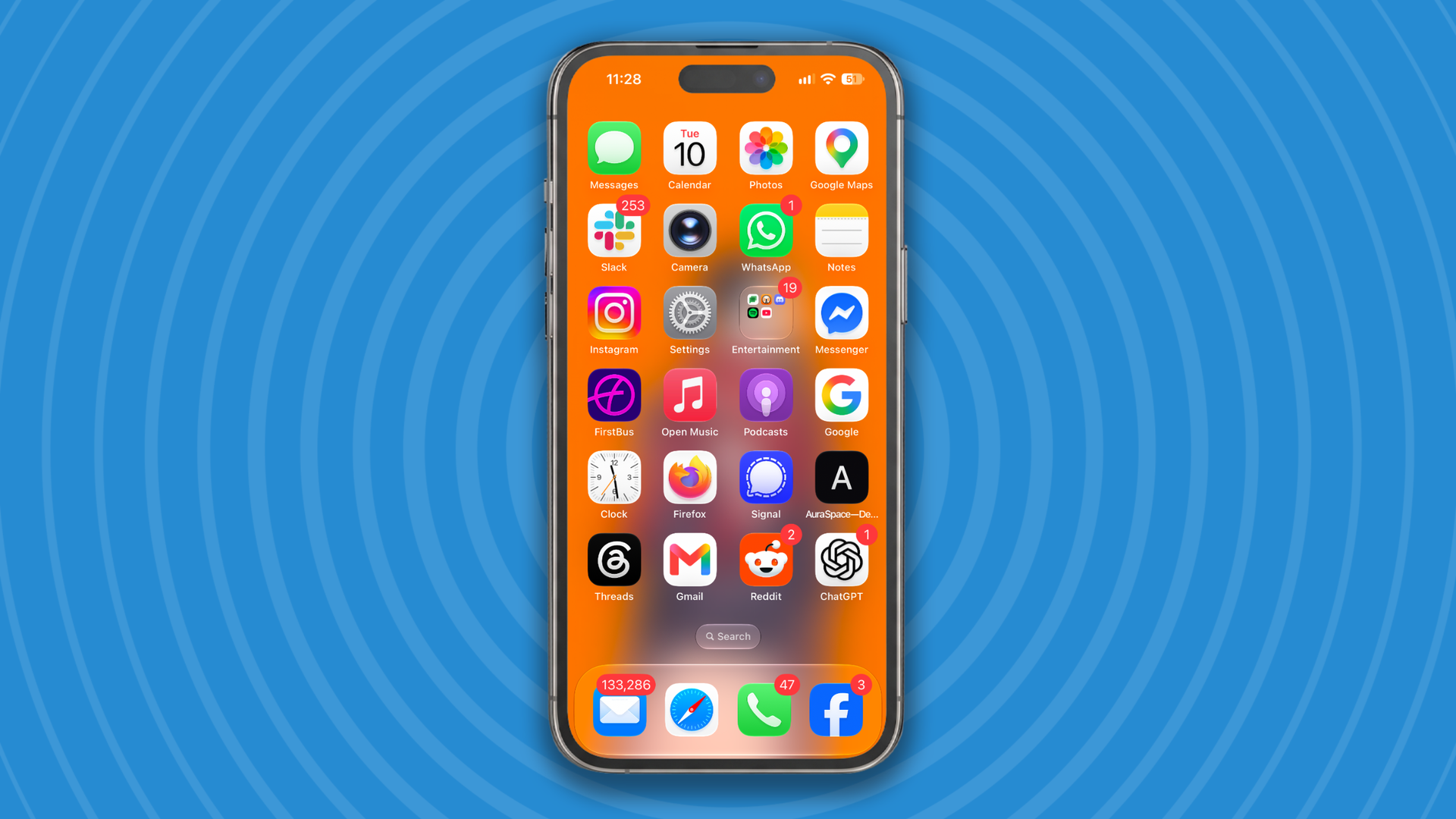
So, after a few short actions you should have got your red Apple Music icon back. Apple might be able to change their icons on a whim, but thanks tot he Shortcuts app you can always change them back.
Let me know how you get on trying this in the comments below.